Guide · Xero

Convert a supplier price list to a Xero items CSV

Xero imports products and services from one specific CSV layout — its own Import Items template — and supplier price lists never arrive in it. The fastest path is to convert the supplier file into that exact layout, with the part number as ItemCode, so every re-import updates your items instead of duplicating them.

What Xero actually needs

Why supplier files break the import

A real supplier price list is a long PDF with section banners, merged cells where one description covers five variants, prices in mixed formats — sometimes a photographed printed page. Retyping that into Xero's template by hand takes hours per supplier, every time the price list changes, and one shifted row puts the wrong price on the wrong item code.

The fast way: upload the file, get the CSV back

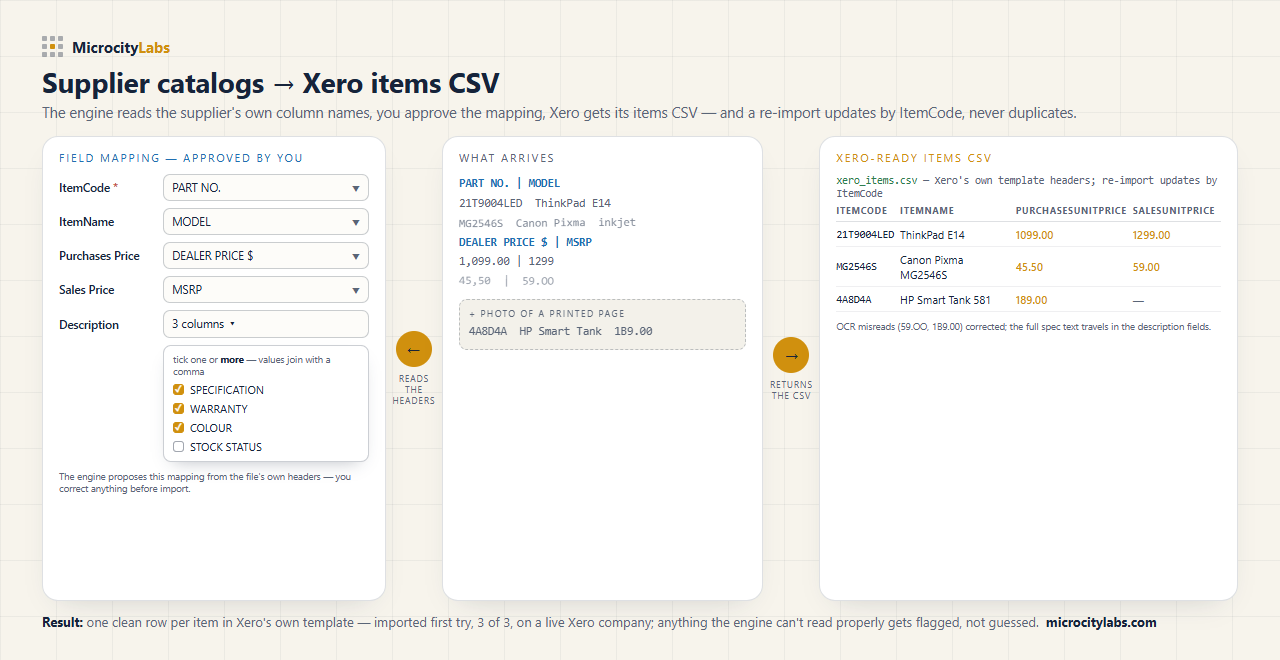
The MicroCity engine reads the supplier file as it arrives — PDF, Excel, scan or photo — and returns a CSV in Xero's own Import Items layout, part numbers as ItemCode, supplier prices in PurchasesUnitPrice. The layout is certified against a real Xero company: a converted supplier file imported 3 of 3 items, zero errors, and a re-import updated them by ItemCode with no duplicates. Anything the engine can't read properly gets flagged, not guessed.

A messy supplier price list mapped to Xero's Import Items CSV: ItemCode, ItemName, PurchasesUnitPrice

Honest limit: the engine returns the import file — it does not connect to your Xero organisation or write to it. You import the CSV yourself and review every line before it goes in. That is by design.
Or the engine does it for you — from £15 per file

Upload your supplier file, check the free 2-page preview, and pay once for the whole file — no account, no subscription. Recurring feeds fit the monthly plans; bookkeeping for clients? Email contact@microcitylabs.com.