Get Anything to Database Shopify Sync
Download the version that matches your Odoo from the Odoo Apps store. Products that start as supplier price lists (PDF, spreadsheet or scan) can be loaded into Odoo first with the supplier catalog importer.
Anything to Database Shopify Sync is an Odoo module that keeps one Shopify store in line with Odoo. You work in Odoo; the store follows. One way: Odoo sends products, variants, prices, pictures and stock, on a schedule, with a log and no duplicates. This page is the full setup guide.
$149 one-time on the Odoo Apps store.
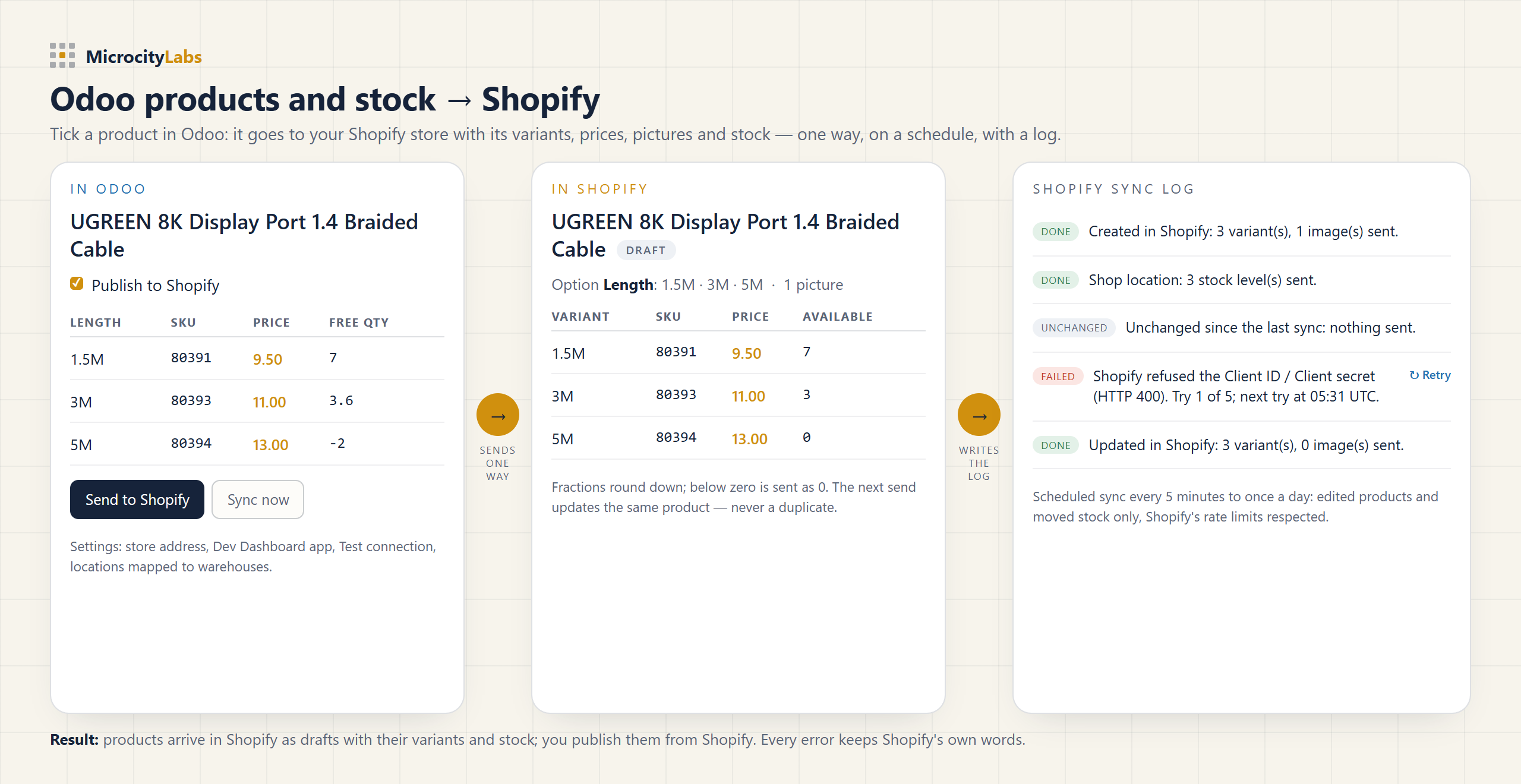
Not included: orders, customers, refunds, payouts, two-way stock, multi-store, Shopify Markets and metafields. The Shopify app it uses needs product, inventory and location access only; it reads no customer data and no order data.
Put the module folder in your Odoo addons path, restart Odoo, then open Apps > Update Apps Listand install "Anything to Database Shopify Sync". Odoo reads new module folders, and their icons, when it starts: without the restart the icon does not show in Apps. The module adds a Shopify Sync app with the menus Sync now, Products, Log, Queue and Configuration.
Since 1 January 2026, new apps that work on a store you own are made in the Shopify Dev Dashboard. An app made in the Shopify admin before 2026 keeps working with its Admin API access token (see step 3).
read_products,write_products,read_inventory,write_inventory,read_locations. Then click Release.The store and the app must be in the same organization. The install page lists only the stores of the app's organization: if your store is not in the list, the app was made in another organization, so create it again in the one that owns the store.
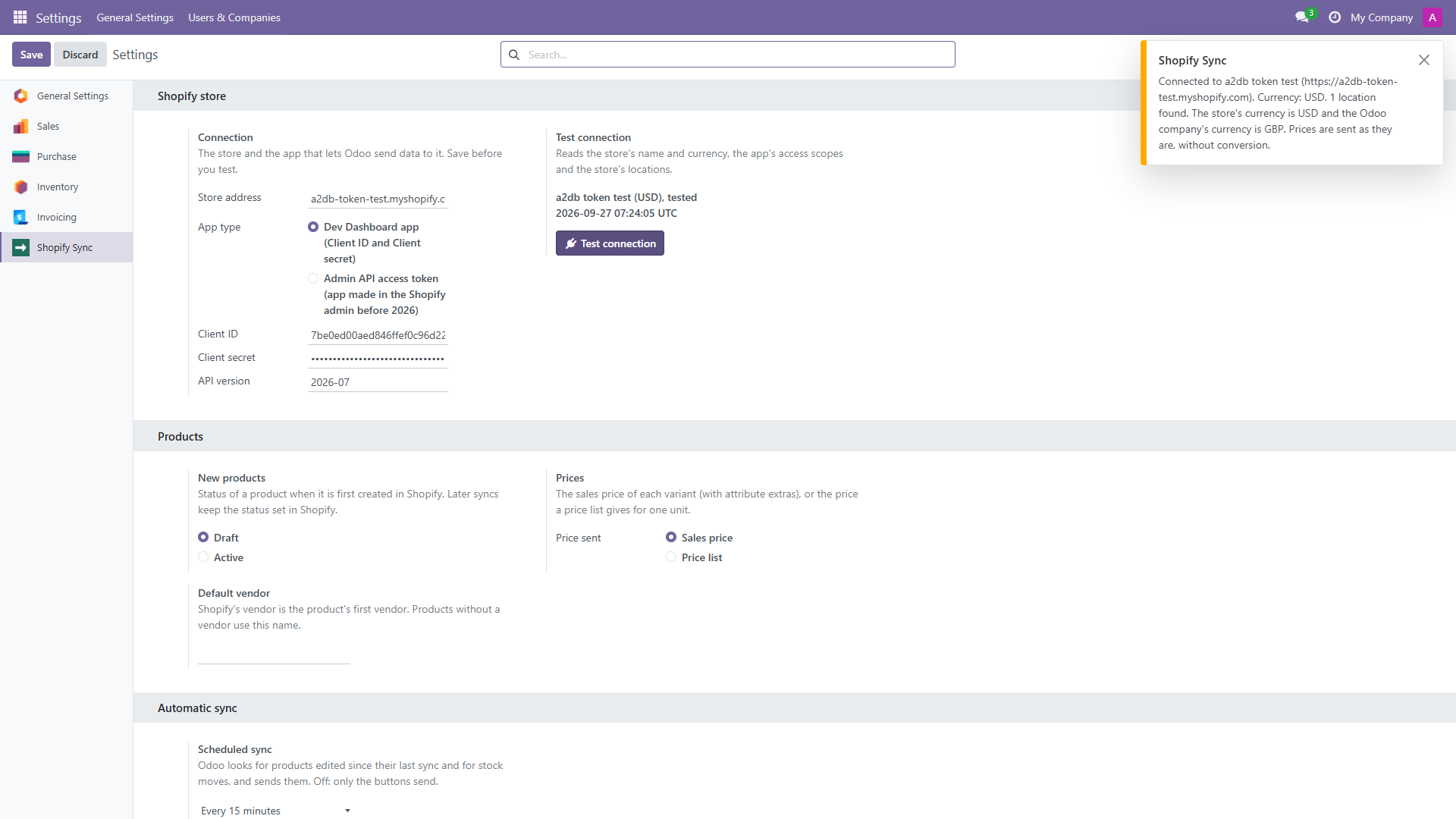
Open Shopify Sync > Configuration > Settings and fill in the store address (your my-store.myshopify.comaddress, not a custom domain), the app type "Dev Dashboard app (Client ID and Client secret)", the Client ID and the Client secret. Leave the API version at its default (2026-07). Click Save first, then Test connection: a click on Test connection while the settings still have unsaved changes only saves them.
Odoo reads the store's name and currency, the app's access scopes and the store's locations, then shows a message such as "Connected to My Store (https://my-store.myshopify.com). Currency: USD. 1 location found." With a Dev Dashboard app, Odoo asks Shopify for an access token when it needs one; the token lasts 24 hours and the module asks for a new one before it ends. There is nothing to renew.
| The message says | What to do |
|---|---|
| "refused the Client ID / Client secret (HTTP 400)" | One of the two values is wrong, or the app is not installed on this store, or the app and the store are in different organizations. Shopify's own words follow: "invalid_request Missing or invalid client secret". |
| "answered 'not found' (HTTP 404)" | The store address or the API version is wrong. Use the myshopify.com address. |
| "refused the access (HTTP 401)" | The token or the credentials are wrong or were revoked. |
| "refused the request (HTTP 403)" | A scope is missing, or the app is not installed on this store. |
| "is missing these access scopes" | Add the scopes to the app, release a new version and approve it on the store. |
| "The store's currency is ... and the Odoo company's currency is ..." | A warning only: prices are sent as numbers, without conversion. |
Shopify's own words are shown after "Shopify said:" in each message.
In Shopify Sync > Configuration > Locations each Shopify location has one row. Pick an Odoo warehouse (its main stock location is filled in) or an Odoo stock location directly. A Shopify location that is not mapped gets no stock from Odoo. Refresh from Shopify reads the list again; a location Shopify no longer lists is archived in Odoo, not deleted.
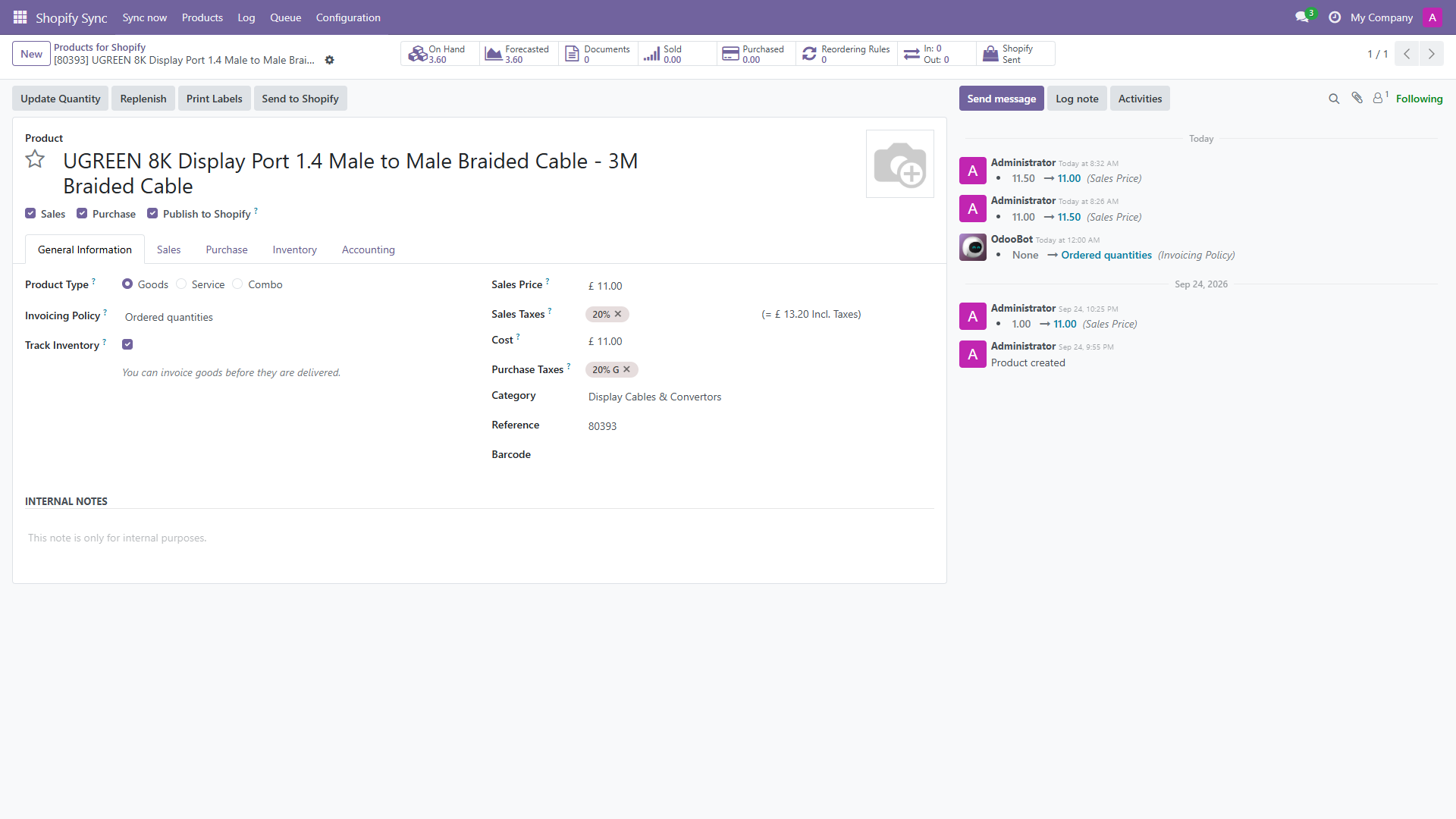
Choose what is sent in the settings: Free quantity (on hand minus reserved, the default), On hand quantity or Forecasted quantity. Only products Odoo keeps stock for are sent ("Track Inventory" in Odoo 18, the product type "Storable Product" in Odoo 17). Fractions are rounded down (3.6 becomes 3) and a negative quantity is sent as 0. Only changed quantities are sent, in batches. Before the first send of a variant to a location, the module switches on Shopify's inventory tracking for it. Click Send stock now to send at once; otherwise the scheduled sync sends the stock that moved.
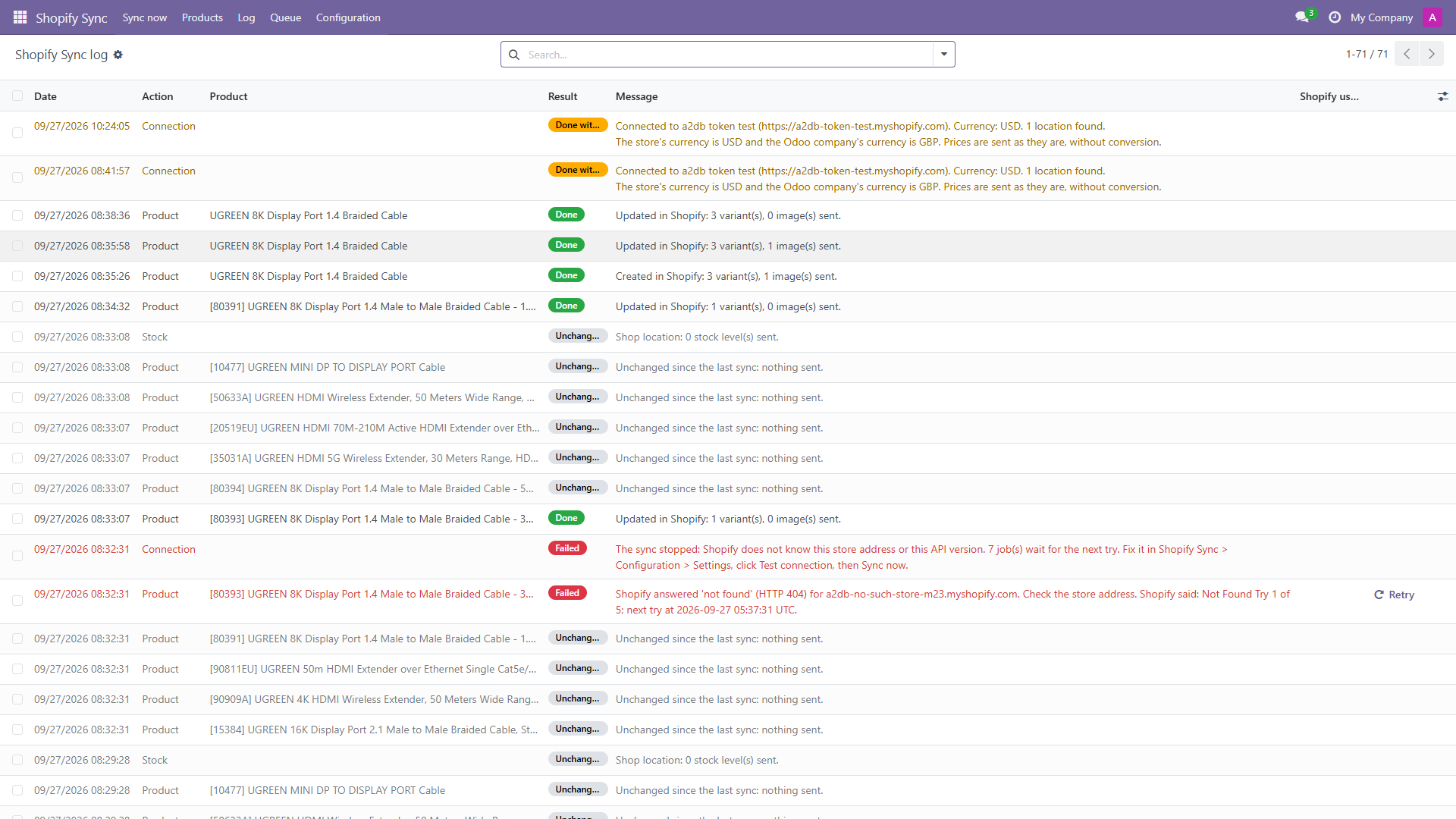
Scheduled sync runs every 5, 15 (default) or 30 minutes, every hour, every 4 hours, once a day, or Off. Shopify Sync > Sync now queues every ticked product and all the stock; unchanged products are checked and not sent again. A failed send is tried again after 5, 10, 20 and 40 minutes (5 tries in all) when the cause can pass. When Shopify refuses the store as a whole (a wrong secret, an unknown store), the run stops at once and the log says why in plain words, for example "The sync stopped: Shopify refused the access token or the app's Client ID / Client secret. 7 job(s) wait for the next try." Fix the settings, click Test connection, then Retry on the failed line or Sync now.
The two versions do the same things; each has its own download on the Odoo Apps store. On Odoo 18 the stock setting on a product is "Track Inventory"; on Odoo 17 it is the product type "Storable Product".
Download the version that matches your Odoo from the Odoo Apps store. Products that start as supplier price lists (PDF, spreadsheet or scan) can be loaded into Odoo first with the supplier catalog importer.